
TruGolf Mini Tips and FAQs
Family. Fun. Golf.
The TruGolf Mini is a new approach to golf swing training and improving your game. Paired with E6 CONNECT software, this interactive swing studio analyzes and displays swing data after every shot, helping golfers of all skill levels understand the game. With TruGolf Mini, every shot you take is a lesson.
Helpful Resources
TruGolf Mini: Getting Started

3D Swing Plane Visualization
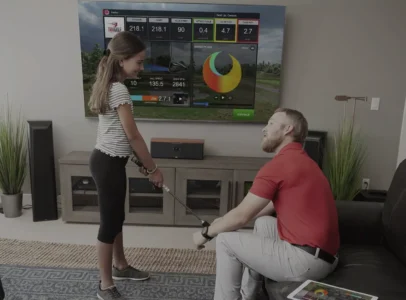
Scoring Zone

Courses for Kids

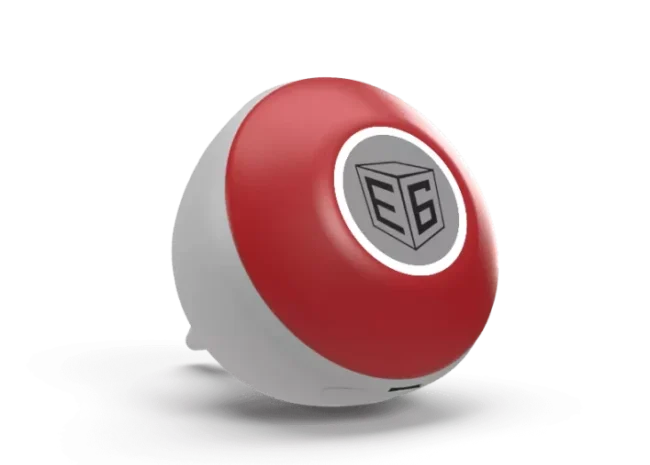
Connecting the sensor to E6 CONNECT.
The device you are connecting the TruGolf Sensor to must be connected to the internet. The TruGolf Mini Sensor will automatically connect to E6 CONNECT software. Users do not need to pair the sensor to their device using the Bluetooth option on their device. Launch the software and power the TruGolf Mini Sensor on.
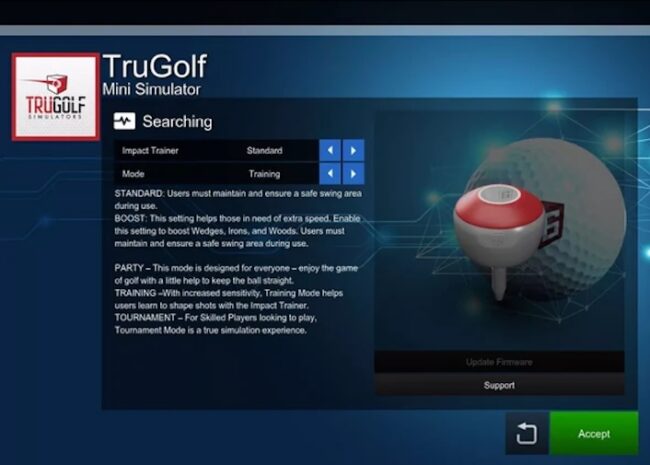
Setting the difficulty level.
Whether you are here for golf, or just here to game you can tailor the TruGolf Mini playing experience to exactly what you and your family need.
In the Settings Menu, choose from: Training, Tournament or Party Mode.
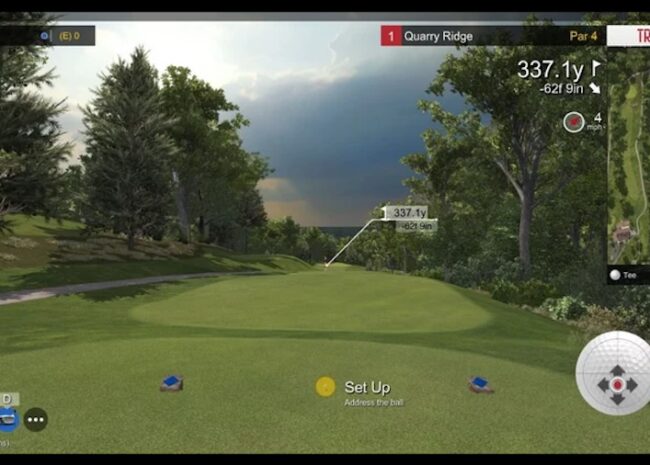
Custom shots.
Looking to hit the same shot you would on the course? Adjust Launch Angle and Back Spin for the selected club using the interface on the right hand side of the screen.
TruGolf Mini Videos
TruGolf Mini FAQs
What iOS devices are the TruGolf Mini compatible with?
- iPad Pro 1 or later
- iPad 5 or later
- iPad Air 3 (Current Version)
- iPad Mini 5 (Current Version)
- iPhone 8 or later
How Do I Redeem My Software for my iOS Device?
- Download E6 CONNECT from the App Store
- Launch E6 CONNECT
- Select – SIGN UP
- Create an E6 Player Profile
- Password
- Username
- Select – REDEEM
- Scan the QR Code or manually the Product Key
PC Device Compatibility
- Intel i5 Processor | 8GB RAM
- Nvidia 1070 Graphics Card or equivalent
- (Dedicated GPU with DirectX 11 Support)
- 25GB of Hard Drive Space | Windows 10 64-bit (Required)
- Internet Connection (Required)
How Do I Purchase Content For A PC Subscription?
LED Light Guide
BATTERY CHARGING
While charging the lighting will alternate between RED and WHITE. Once the device is fully charged, the LED indicators will be all white.
LOW BATTERY
When the device has a low battery, LED indicators will alternate between RED and WHITE.
SENDING DATA
The device will PULSE WHITE LED Indicators quickly when it is sending data to your tablet.
FIRMWARE UPDATE
During Bluetooth connection, LED Indicators will ROTATE IN A CIRCLE WHITE PULSING WHITE while firmware is being updated.
BLUETOOTH NOT PAIRED
LED Indicators will FLASH SIDE TO SIDE while the device is not connected to a mobile device.
BLUETOOTH PAIRED
LED Indicators will slowly FLASH ALL WHITE indicating the sensor has paired with a tablet or mobile device.
READY
When the device is paired and in Impact Position, the LED Indicators will shine ALL WHITE.
SLEEP MODE
The LED Indicators will rotate in a CIRCULAR MOTION EVERY 10 SECONDS when the device is in sleep mode. Sleep Mode occurs after two minutes of no data transmission or action from the sensor.
POWER ON
The LED Indicators will begin DIMMED WHITE with RED and CIRCULAR MOTION while the device is being turned on.
How to change or cancel E6 CONNECT subscriptions on your iPhone or iPad?
- Open the Settings app on your device.
- Tap your name, then tap Subscriptions.*
- Tap the subscription that you want to manage. Don’t see the subscription that you’re looking for?
- Choose a different subscription option, or tap Cancel Subscription. If you don’t see Cancel Subscription, the subscription is already canceled and won’t renew.
*If you don’t see “Subscriptions” in the Settings app, tap “iTunes & App Store” instead. Tap your Apple ID (which is usually your email address), then tap View Apple ID. Sign in, scroll down to Subscriptions, then tap Subscriptions.
How do I connect the sensor to my tablet?
- The sensor has been designed to connect automatically. Simply launch E6 CONNECT and then power on your TruGolf Mini Simulator sensor.
- Users must hold down the E6 BUTTON until the sensor powers on. Depress the button for up to 5 seconds.
How Do I Use the Install and Use the Mandatory Safety Loop?
- Insert the Handle Through both ends of the Mandatory Safety Loop.
- Place Fingers Through Strap
- Swing
My Product Code has already been consumed.
In the event you receive an alert that your Product Code has already been consumed, users should navigate to: portal.e6golf.com. Log in using the credentials you created during Sign Up for E6 CONNECT.
Under the Licenses Tab, users should see Core License and TruGolf Mini. If the TruGolf Mini License appears, the product code was assigned to your E6 Player Profile and users will need to Unbind their Core License, relaunch E6 CONNECT and Bind their TruGolf Mini License.
If the TruGolf Mini license does not appear under your Mobile Licenses, please contact Customer Support.
I am not seeing all of my content.
If users are not able to access the entirety of their content, users should navigate to: portal.e6golf.com. Log in using the credentials you created during Sign Up for E6 CONNECT.
Instructions:
- Log In at portal.e6golf.com
- Navigate to “Licenses”
- Select the License labeled “Core License”
- Restart the E6 APP
- Log In
- Select your TruGolf Mini License to Bind.
How do I turn my sensor off?
Simply depress the top button for up to 5 seconds.
What should I do if my sensor is not connecting automatically?
The sensor has been designed to connect automatically. If you are experiencing difficulty, try the following:
- Make sure the device is fully charged – having a low battery may cause connection issues.
- Make sure that your Bluetooth is enabled.
- Check to see if your tablet is connected to other Bluetooth devices.
- Make sure you are using the most up-to-date version of your tablet’s operating system.
- Make sure you are using the most up-to-date version of E6 CONNECT.
- Users should check the Bluetooth Privacy Settings
What do the Difficulty Settings do?
- Party – This setting provides a boost and threshold feature that will assist players to make it to the hole. This will help increase distance for Slower Swing Speeds and throttle the distance the ball will go near and around the green. This setting is designed for those who are new to the game.
- Training– This setting provides a threshold feature that will assist players on approach shots and chips. This will throttle the distance the ball go as players approach the green – helping assist players as they develop feel with the TruGolf Mini Simulator and Impact Trainer.
- Tournament – This setting provides no assistance to players. Swing Data is taken and combined with an advanced ball algorithm to derive ball flight – resulting in a multitude of Shot Shapes, Backspin Results, Launch Angles and more. Additionally, Advanced Mode requires players to Swing on a more singular plane – too much variation in Swing Plane will result in poor shots. The Sensor must return to its impact position (where it started from) for a player to achieve a perfect shot.
What should I do if I am having difficulty registering a shot?
- Users should swing the club like they would a real golf club.
- Users should begin their swing as soon as possible. If they take too long to register a swing, the sensor may timeout.
- If the sensor is not responding, click the E6 BUTTON twice to refresh the device.
- The Club must be held at an angle – if it is too vertical it will attempt to reset.
- Once the sensor has calibrated it will announce to the user, via sound, “Ready”
- Users should take care to limit “waggle” – the sensor will not calibrate until it has been held still and in place for a few seconds. “Waggle” is defined as short quick movements, side to side or up and down.
- Make sure the device is fully charged – having a low battery may cause connection issues.
How does the Auto Caddie and Club Selection work?
The Software will preselect clubs for users. However, depending on an individual users’ Swing Speed and Uphill vs Downhill, Elevation, and Wind Conditions some users will need to change club selection accordingly.
How to I display E6 Connect on a TV?
To learn more about AirPlay video from your iPhone, iPad, or iPod touch visit:https://support.apple.com/en-us/HT204289#iOS